Setup Snap2Object
Overview
Once the WEKA cluster is created in Azure we will now create a blob and connect to the WEKA cluster. This is the location WEKA will store snapshots data. These snapshops will be later used to restore to a new cluster.
Prerequisites
Admin Access in Azure
Azure Setup
We need to create a remote Object Store in Azure to connect to WEKA.
Logon to the Azure Portal and start Cloud Shell
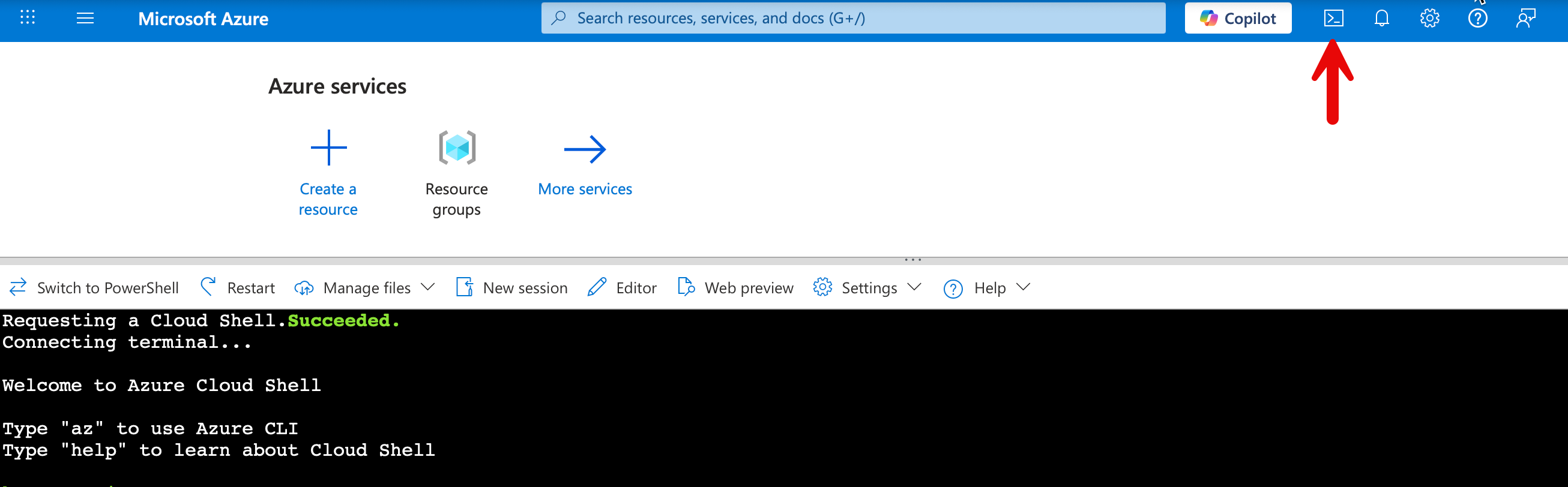
Azure Blob Storage containers reside within a storage account. So we need to create a new storage account.
az storage account create --name $STORAGE_ACCOUNT_NAME --resource-group $RG --location $LOCATION --sku Standard_LRS
Now, create the container within your storage account. This is the equivalent of an S3 bucket in Azure.
az storage container create --name $CONTAINER_NAME --account-name $STORAGE_ACCOUNT_NAME
Retrive your secret key [Warning] This output may compromise security by showing the following secrets. Only do this in a lab environemnt.
az storage account keys list --account-name $STORAGE_ACCOUNT_NAME --query "[0].{keyName:keyName, value:value}" --output json

SSH into on of your WEKA Backends. The location of the .pem file is in your Terraform output
ssh -i $SSH_KEY.pem weka@$BACKEND_PUBLIC_IP
WEKA Setup
We will now connect the Azure blob to WEKA for remote Snapshots.
Add a remote bucket to your WEKA cluster. You will need the following vaules from the previous steps
STORAGE_ACCOUNT_NAME
CONTAINER_NAME
STORAGE_ACCOUNT_ACCESS_KEY
weka fs tier s3 add azure-obs --site local --obs-name default-local --obs-type AZURE --hostname $STORAGE_ACCOUNT_NAME.blob.core.windows.net --port 443 --bucket $CONTAINER_NAME --access-key-id $STORAGE_ACCOUNT_NAME --secret-key $STORAGE_ACCOUNT_ACCESS_KEY --protocol https --auth-method AWSSignature4
Attatch the buckt to your default file system
weka fs tier s3 attach default azure-obs --mode remote